- Launch command Prompt
- type netplwiz
- launch the netplwiz app
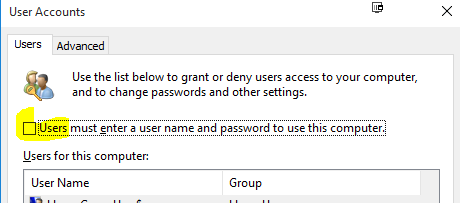
- Uncheck "User must enter username and password to use this computer"
- you will be prompted to confirm, with your current password.
Saturday, August 1, 2015
Windows 10: How to remove login password
Thursday, July 30, 2015
GAC Uninstall: Access denied
I am sure you have seen this before and as frustrated as me.
After going through several google searches,this process works
1) When you launch Windows Explorer, there is no easy way to "Run as Administrator"
2) Since Explorer does not have Admin rights, you get "Access denied messge"
To fix
1) Launch Task Manager, and Kill Windows Explorer
2) In Task Manager, go to File-> New Task (Run...), Type explorer and check "Create this task with administrator privileges"

3) Once the explorer launches, you will be able to uninstall from GAC
After going through several google searches,this process works
1) When you launch Windows Explorer, there is no easy way to "Run as Administrator"
2) Since Explorer does not have Admin rights, you get "Access denied messge"
To fix
1) Launch Task Manager, and Kill Windows Explorer
2) In Task Manager, go to File-> New Task (Run...), Type explorer and check "Create this task with administrator privileges"
3) Once the explorer launches, you will be able to uninstall from GAC
Wednesday, July 1, 2015
GPG error:public key is not available
I have a NAS, and when i try to run apt-get update, I got a series of warning messages like below
W: GPG error: http://ftp.us.debian.org squeeze Release: The following signatures couldn't be verified because the public key is not available: NO_PUBKEY AED4B06F473041FA NO_PUBKEY 64481591B98321F9
W: GPG error: http://ftp.us.debian.org wheezy Release: The following signatures couldn't be verified because the public key is not available: NO_PUBKEY 8B48AD6246925553 NO_PUBKEY 7638D0442B90D010 NO_PUBKEY 6FB2A1C265FFB764
This link gave me the solution. You copy your keys, and run the following command
sudo apt-key adv --keyserver keyserver.ubuntu.com --recv-keys AED4B06F473041FA
You can either run it for each key, or separate each key by space
sudo apt-key adv --keyserver keyserver.ubuntu.com --recv-keys AED4B06F473041FA 64481591B98321F9
W: GPG error: http://ftp.us.debian.org squeeze Release: The following signatures couldn't be verified because the public key is not available: NO_PUBKEY AED4B06F473041FA NO_PUBKEY 64481591B98321F9
W: GPG error: http://ftp.us.debian.org wheezy Release: The following signatures couldn't be verified because the public key is not available: NO_PUBKEY 8B48AD6246925553 NO_PUBKEY 7638D0442B90D010 NO_PUBKEY 6FB2A1C265FFB764
This link gave me the solution. You copy your keys, and run the following command
sudo apt-key adv --keyserver keyserver.ubuntu.com --recv-keys AED4B06F473041FA
You can either run it for each key, or separate each key by space
sudo apt-key adv --keyserver keyserver.ubuntu.com --recv-keys AED4B06F473041FA 64481591B98321F9
Thursday, June 11, 2015
WCF: How to get application physical base directory
I am generating a temp file in my WCF and wanted to store in a Temp folder inside my WCF.
HTTPContext does not apply for WCF, so we can't use that to get the base directory
Environment.CurrentDirectory => Will provide you the debug/bin directory
AppDomain.CurrentDomain.BaseDirectory => Will provide you the debug/bin directory as well.
System.Web.Hosting.HostingEnvironment.ApplicationPhysicalPath => Will provide you the Application base directory.
Note that, System.Web.Hosting.HostingEnvironment.ApplicationPhysicalPath will work only if you host the WCF Service as Web application..
If you host the WCF Service from console, it will always return null.
HTTPContext does not apply for WCF, so we can't use that to get the base directory
Environment.CurrentDirectory => Will provide you the debug/bin directory
AppDomain.CurrentDomain.BaseDirectory => Will provide you the debug/bin directory as well.
System.Web.Hosting.HostingEnvironment.ApplicationPhysicalPath => Will provide you the Application base directory.
Note that, System.Web.Hosting.HostingEnvironment.ApplicationPhysicalPath will work only if you host the WCF Service as Web application..
If you host the WCF Service from console, it will always return null.
Wednesday, June 10, 2015
HTTP could not register URL
I was trying to run a service with a non admin user (rmanni), and when I start the service, I got the error
To solve the issue Microsoft said, I need to add the url using netsh command as mentioned here
This command solved it for me
netsh http add urlacl url=http://+:8080/MyService user=myDomain\rmanni
HTTP could not register URL http://+:8080/MyService/. Your process does not have access rights to this namespace
To solve the issue Microsoft said, I need to add the url using netsh command as mentioned here
This command solved it for me
netsh http add urlacl url=http://+:8080/MyService user=myDomain\rmanni
Subscribe to:
Posts (Atom)